TELUS Canada 5G eSIM | Local IP | 50GB/75GB/100GB/120GB | Unlimited local calls + 1000 minutes of international calls | Yellowknife coverage | QR Code

TELUS Canada 5G eSIM | Local IP | 50GB/75GB/100GB/120GB | Unlimited local calls + 1000 minutes of international calls | Yellowknife coverage | QR Code

4.6/5
Good
(168 reviews)
6K+ booked
Use anytime during validity
Book now for today
Booking confirmation
Non-refundable
From
SEK 220.00
Device info

Product Description

Signal coverage

Applicable countries and regions: Canada (fully covering Yellowknife)

Local network operator: Native TELUS 5G network, Canadian IP

Product details

Provides Canadian +1 phone numbers, local TELUS IP address in Canada.

Show less
Validity period
Valid for 60 days from the booking date, Valid for 1 use(s) only
What's included
Unlimited Canada-wide minutes
Unlimited text & picture (Canada-wide & international)
1000 minutes of international calls
Hotspot sharing
Covering Yellowknife
How to use
[Install eSIM] Method 1
※ If you are using an iPhone and have upgraded to iOS 17.4 or later, you can install it with one click through the Trip.com App (if you cannot do this, please make sure you have updated the App and your iOS system).
• iPhone: Set up mobile data and add eSIM
• Android: Settings > Network and Internet > SIM Card > Add eSIM (the steps may vary slightly depending on the brand)
 
[Installing eSIM] Method Two
1. Open the QR code attachment in your Trip.com APP order and print it out beforehand or save it to another electronic device. (iOS 17 and above and some Android phones can directly save the QR code image to their phone).
2. Open Cellular (iOS) or SIM Management (Android) in Settings.
3. With your phone connected to the internet, tap "Add Cellular" (iOS) or "Add SIM Management" (Android) and scan the QR code to install.
4. If you cannot scan the code, enter the "SM-DP + Address and Activation Code" from your order voucher to install.
5. If steps 3 or 4 fail, your phone may be locked by your local carrier (unable to use other carriers' network bands). You will need to contact your carrier to unlock it before using the eSIM.
 
[Using eSIM]
1. Turn off the primary SIM card and turn on the eSIM network switch.
2. Enable cellular network (iOS) or SIM card (Android).
3. If you still cannot access the internet after the above settings, please set up your APN and restart. Enter the APN: sp.telus.com
Change & cancellation policies
Please note that the booking cannot be canceled once it is confirmed
The selected date and time cannot be modified after booking.
Important note

[eSlM Usage Conditions]

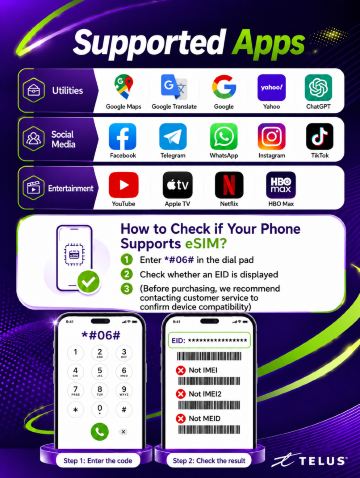
1. The device supports eSIM functionality.

How to check: Dial *#06# on the phone screen. Generally, the presence of an EID indicates eSIM support. Without an EID, eSIM cannot be used.

2. Unlocked mobile phone

How to check: Confirm with your mobile network operator whether your device is locked to the network.

*Please check that the above conditions are met before purchasing; all conditions must be met for eSIM to function properly.

[Setting eSlM]

eSIMs can only be installed with a network connection, so it is recommended to install an eSIM 6-12 hours before departure.

[Do not delete eSlM after installation]

Each QR code can only be installed once. If the eSIM has been removed from the device, we cannot assist you.

FAQ